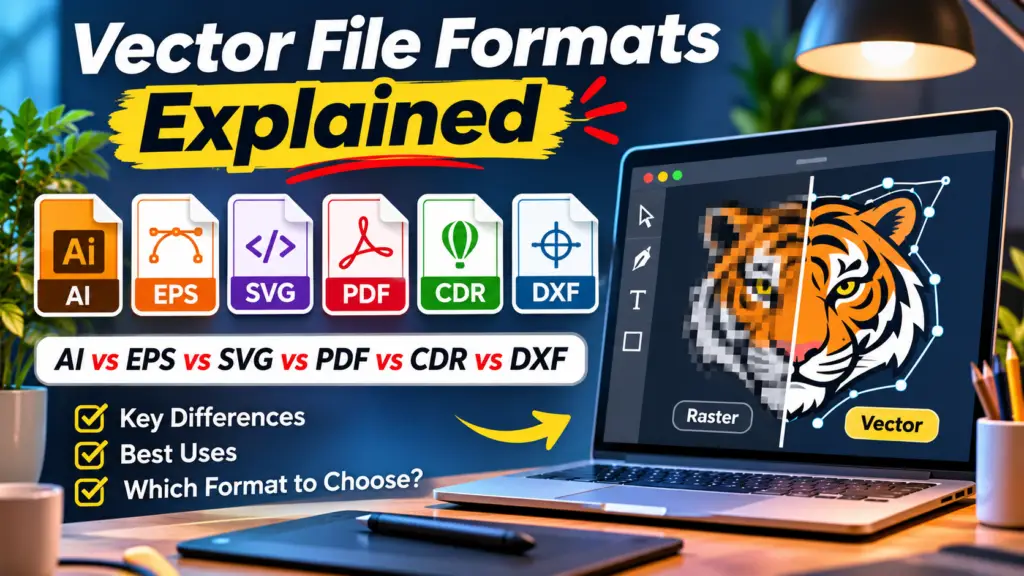
Your printer will require an EPS; a web designer will require an SVG. Your sign shop will need a CDR file, while the laser cutting machine only accepts DXF files. If you are ever unsure of what to send, the guide will help you. It covers the six most popular vector file formats in a straightforward manner with real world tips to make sure that your artwork works the first time.
Quick answer: AI files are used mostly for editing in Adobe Illustrator; EPS for printing in traditional printers and for promotional products; SVG for cutting machines and websites; PDF for sharing the files as print-ready proofs; and CDR for people who are using CorelDRAW and for many sign shops, while DXF files are used for CNC, laser cutting, and CAD. The proper file depends on where you are sending it, so remember to check the requirements of your vendor.
What Is a Vector File and Why Does the Format Matter?
Vector files hold images in the form of lines, shapes, and curves, rather than pixels; therefore, they can be blown up to any size without losing quality. However, not every vector file fits every purpose. Each one was created to work with its own equipment, software, or workflow. Using the wrong file format may result in missing fonts, wrong colours, or an unreadable file.
| Format | What it is | Best for | Things to know |
| AI | Adobe Illustrator’s native format | Editing and master artwork | Keeps layers and artboards; best opened in Illustrator |
| EPS | Encapsulated PostScript, an older universal format | Printers, promotional products, sign makers | Widely accepted; transparency may be flattened |
| SVG | Scalable Vector Graphics, a web standard | Websites, apps, Cricut and Silhouette, laser engraving | Usually RGB; not ideal for CMYK print |
| Portable Document Format | Proofs, sharing and print-ready files | Can contain vector and raster content; embeds fonts | |
| CDR | CorelDRAW’s native format | Sign shops, engravers, embroidery and CorelDRAW users | Save to an older version if the vendor uses older software |
| DXF | Drawing Exchange Format from CAD | CNC routers, laser and plasma cutters, CAD software | Mainly lines and shapes; colours and fills are often ignored |
Example: a company may have its logo saved in an AI file, print it out in an EPS or PDF format and upload it as an SVG file onto its website, and give a DXF file to the manufacturer of metal signs.
How to Prepare Vector Artwork Step by Step
Good vector artwork preparation follows the same basic steps for most outputs:
- Start with clean vector artwork: Ensure that your design is made from original paths and not from a bitmapped image.
- Set the final size: Make your document according to the actual dimensions and units of output.
- Choose the right colour mode: Use CMYK or Pantone colours for printing and RGB for monitors or the web.
- Handle the fonts: Transform your letters into outline paths for production files (and keep an editable file).
- Clean the paths: Delete unnecessary points, connect opened shapes, and combine overlapping sections if required.
- Set up special layers: Separate cut lines and bleed or white ink in different layers and name these layers appropriately.
- Export in the required format and version: Match the vendor to the same version of software you are going to use (for CDR and EPS).
- Open the exported file to check it: Confirm nothing is missing or shifted.
Resolution, Colour, Fonts and Dimensions to Check
- Resolution: Vector images don’t have limitations on resolution; however, all the raster components, such as photographs, textures, or effects, should have high resolution to match the final print size. Many printers ask for around 300 ppi.
- Colour: Use CMYK colours for full-colour print and Pantone (spot) colour for exact colours of the brand or for silk screen printing. Use RGB colours for the website and for any digital use.
- Fonts: Make sure to outline or embed all the fonts so that the file can appear the same on any computer.
- Size and units: Ensure that the artwork has been set to the right dimensions in inches or millimetres. This is particularly important for DXF files.
- Bleed: Add bleed and keep important content away from trim edges if your printer requires it.
- Line weights: Very thin lines may not print, cut, or stitch well. Check your vendor’s minimum line thickness.
Need files ready for production? See Vector.Center’s print-ready vector artwork service.
Common Export and Production Problems
- Missing fonts: When the fonts are not outlined or embedded, the text changes or disappears.
- Colour shifts: RGB images may look duller once printed with CMYK technology.
- Flattened transparency: EPS documents can separate the translucent effects into multiple small fragments.
- Fake vector files: A JPG or PNG image that is placed inside an AI, EPS, PDF, or SVG remains a bitmap.
- Open or duplicate paths: The cutting machine might fail to cut the shape or cut the same line twice.
- Too many anchor points: The complexity of the paths may considerably slow the operation of the cutting and embroidery machines.
- Wrong units: The DXF file created in feet may be interpreted as one created in centimetres and therefore measured incorrectly.
- Version mismatch: A newer CDR or AI will not be compatible with older software.
Preflight Checklist for the Intended Output
| Output | Recommended formats | Key checks |
| Offset and digital print | PDF, EPS, AI | CMYK or spot colours, outlined fonts, bleed, high-resolution images |
| Screen printing and apparel | AI, EPS, PDF | Limited spot colours, clean separations, minimum line weights |
| Embroidery | AI, EPS, PDF | Simplified shapes and clean outlines for digitising |
| Vinyl cutting and engraving | SVG, DXF, AI, EPS | Closed paths, no duplicates, correct size |
| CNC and laser cutting | DXF, SVG | Single lines, correct units, no stray points |
| Web and apps | SVG | RGB colours, optimised file size, clean code |
Also see our guides to the vector file for embroidery and T-shirt vector design.
Common Mistakes to Avoid
- Sending a JPG renamed as a vector file: A name change in the extension does not produce vector graphics.
- Assuming one format fits all: A document suitable for the web may also be valid for print and cut.
- Skipping vendor specs: Different suppliers of printing services or fabrics have their own specific needs regarding the format of data, colour, and size of files.
- Delivering only outlined files: Place the master file with open text for making all future alterations.
- Not checking the export: Always double-check the source file you are going to deliver.
- Relying on verbal instructions: Ask your vendor for the data decision specifications in writing.
Frequently Asked Questions
What should I know first about vector file formats?
All six formats can store vector files, but each is designed for its peculiar purpose, i.e., AI for editing; EPS and PDF for printing; SVG for the web and cutting machines; CDR for CorelDRAW users; and DXF for CNC and CAD.
How do I choose the right vector format for my project?
Start with where the artwork is going, then follow your vendor’s requirements. If you are in doubt, maintain your master AI file and the versions in AI, EPS, SVG, and PDF formats.
Which specifications or quality checks matter most?
Make sure the file is of true vector format, that the colours and fonts are correct, that the size and unit are right, and that the paths are clean and close.
How should I prepare and store my vector files?
Keep the editable master file, save the production copies after the fonts are outlined, name the files accordingly, and keep backups.
Conclusion
With vector file formats explained, the selection becomes straightforward: simply ensure that the selected type corresponds to the use. In detail, use AI technology for editing works, EPS or PDF for preparing ready-to-print files, SVG for designing web pages and cutting out patterns, CDR files for CorelDRAW applications, and DXF for woodworking and laser cutting. After that, you should check size, colour, fonts, and paths.
Need your logo in every vector file type? Vector.Center redraws artwork by hand and delivers AI, EPS, SVG, PDF, and CDR files at no extra cost. Ask about DXF and other machine ready formats when you request a free quote.