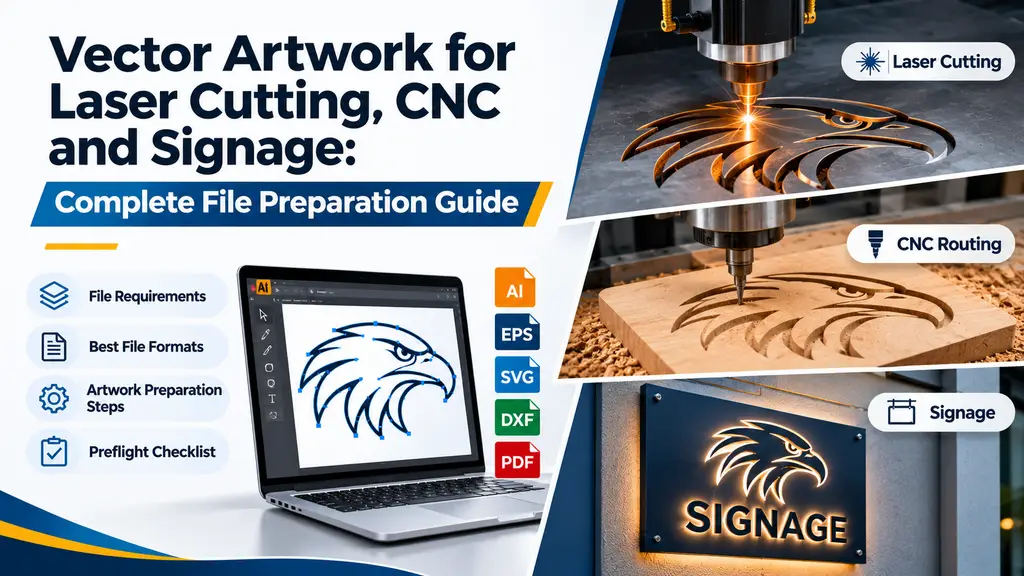
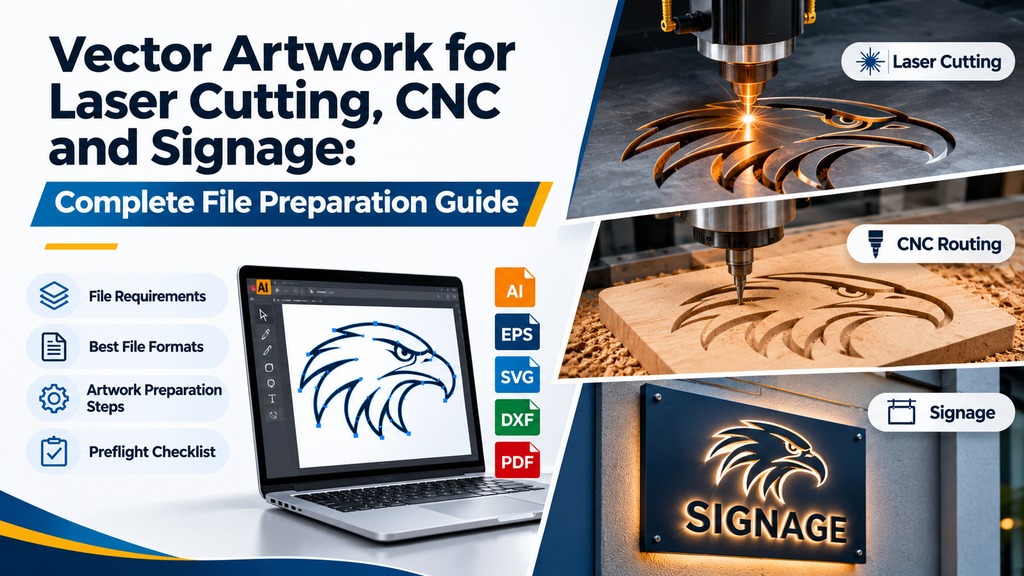
Laser cutters, routers, and vinyl plotters do not create pictures. They simply follow lines. If the file contains a lot of line segments or hidden images, the machine will not work or will cut out the incorrect picture. This guide explains how to prepare vector artwork for laser cutting, CNC routing, and signage so your files cut cleanly the first time.
Quick answer: The cutting machines require clean vector files to be able to work correctly. Consider the real size of the image; use closed paths with no duplicates or overlaps. Convert text to outlines and set cut and engrave lines as your shop asks (often by stroke color and line weight). Send the request in the requested format (usually DXF, SVG, AI, EPS, or PDF). Always confirm the shop’s file rules before sending.
Why Laser, CNC and Sign Machines Need Vector Files
A vector file is composed of paths that are lines and curves defined by two known points. The cutting and routing machines interpret these paths as commands that the laser, cutter, or tool must act on.
| Machine | What it does with the vector |
| Laser cutter or engraver | Cuts along lines and engraves filled areas or lines |
| CNC router | Moves a cutting tool along paths to cut or carve material |
| Vinyl cutter (plotter) | Cuts letters and shapes from vinyl for signs and decals |
| Plasma or waterjet cutter | Cuts metal or other materials along paths |
A JPG or PNG does not have paths but consists of pixels. Since the cutting software renders a raster image directly, the file must first be converted into a vector format.
For a better understanding of how laser software processes raster and vector artwork, refer to LightBurn’s guide to images and vectors
Example: a company sends a logo in PNG format for metal signage. The manufacturer requests vector based files because the CNC has to be provided with precise paths to cut.
Best Vector File Formats for Laser Cutting, CNC, and Signage
Different machines and shops prefer different vector file formats:
| Format | Common use | Notes |
| DXF | CNC routers, plasma, waterjet, and many laser shops | Widely read by CAD/CAM software; keeps paths but not always colors or fills |
| SVG | Hobby lasers, vinyl cutters, and web based tools | Common with many desktop cutting programs |
| AI | Laser and sign shops using Adobe Illustrator | Keeps layers and colors |
| EPS | Sign shops and older workflows | Widely accepted |
Many laser and sign shops | Easy to share; must contain true vectors |
Useful check: check with your shop to know about their preferred format and software version before exporting a file. Also, when in doubt, please provide a DXF file along with an AI or PDF.
For more on formats, read our guide to the best file formats for vector graphics.
How to Prepare Vector Artwork for Laser Cutting
Below are steps for clean vector artwork preparation:
- Start with the real vectors: If you only have a JPG or a PNG file, you can convert them first using a raster to vector conversion service.
- Work at actual size: You need to set the document to a unit of measure and create your artwork at scale.
- Close all cut paths: Shapes you want to get are supposed to be closed vector paths without holes.
- Remove duplicates and overlaps: Lines that are doubled may cause double cutting.
- Outline all text: You have to convert text to a shape so that the font does not change on the printing machine.
- Separate operations: cut, score, and engrave operations should be done on different layers or colors, as it is prescribed by your printing house.
- Simplify paths: It is beneficial to delete unnecessary anchor points for the smooth movement of a machine.
- Export in the requested format: Ensure that the exported file could be opened properly before sending it for printing.
Example: A shop owner wants to have a wooden sign with cut-out letters. In this case, the designer outline of the letter, connects any broken paths, clear unnecessary points, and emails the DXF in the correct size to the owner.
Line Weights, Colors, Text, and Sizes to Check
Check | What to do | Why it matters |
Cut lines | Use the stroke color and very thin line weight your shop asks for | Many laser shops use color and hairline strokes to tell cut lines apart |
| Engrave areas | Use filled shapes or the color your shop specifies | Helps the machine tell engraving from cutting |
| Units and scale | Work in inches or millimeters at 1:1 | Prevents parts from being cut too big or too small |
Small details | Avoid features too small for the material or tool | Tiny gaps and points may burn, break, or not cut |
| Text | Outline fonts; use stencil fonts where inner parts must stay attached | Letters like O and A lose their centers without bridges |
| Kerf and tool size | Ask the shop how they handle kerf (laser) or tool diameter (CNC) | Affects the final size of parts and fit of joints |
| Inside corners (CNC) | Expect rounded inside corners | A round cutting tool cannot cut a perfectly sharp inside corner |
Color and line rules differ between shops and machines, so always follow your shop’s file guide.
Common Cutting File Problems (and Fixes)
Problem | Likely cause | Fix |
Machine cuts a line twice | Duplicate or overlapping paths | Delete duplicates and merge overlapping shapes |
The shape does not cut out fully | Open path with a small gap | Join the path so it is fully closed |
Parts are the wrong size | File not at 1:1 scale or with the wrong units | Set units and scale before exporting |
Letter centers fall out | No bridges in letters like O, A, or B | Use a stencil font or add bridges |
| Jagged or wobbly cuts | Rough auto trace with too many points | Redraw or simplify the paths |
| Nothing cuts at all | Artwork is a raster image inside the file | Replace with true vector paths |
Text looks different | Fonts not outlined | Convert text to outlines |
Useful check: Select outline view in your graphics software. You should see only clean lines, with no hidden images or stray points.
Preflight Checklist by Output
Cutting files are not the same as print ready files. Before sending, check what your output needs:
Output | Extra checks |
Laser cutting and engraving | Cut and engrave colors set as the shop asks, hairline cut strokes, closed paths |
CNC routing | DXF format, closed paths, and design suits the tool size; rounded inside corners expected |
| Vinyl signage and decals | Clean outlines, no tiny islands that will peel, and weeding allowed for |
Routed or cut out sign letters | Correct letter height, bridges where needed, spacing confirmed |
Printed signs | Use print rules instead: CMYK, bleed, and high resolution images |
Final checks for every job:
- The file opens properly and has actual dimensions.
- All text is outlined.
- There are no repeated lines or any stray points or hidden images.
- The material, thickness, and quantity are stipulated in the order.
- The file name is easy to understand, e.g., “ShopSign_Acrylic_6mm_Cut.dxf.”
Preparing a printed sign instead? See our print ready vector artwork service.
Common Mistakes to Avoid
- Sending either a JPG or a PNG file for cutting will result in unsuitable files since machines need vector paths.
- Saving the image as PDF or EPS does not mean it gets converted into a vector image because the pixels are still present.
- Relying on the auto tracing process usually produces rough paths and broken lines, so it is better to check the output images closely or redraw them.
- Leaving open paths and duplicates create problems, as the machine will interpret them as cutting errors or double cuts.
- If the material limits are ignored, details may be lost in wood, acrylic, and metal.
- Failing to consider the kerf/tool size will cause parts or joints to mismatch.
- Thinking every machine shop follows the same practices may result in miscommunication regarding the format, colors, line width, and units.
Frequently Asked Questions
What file format is best for laser cutting?
It depends on the shop. Common file formats are DXF, SVG, AI, and PDF. It is essential to check which program your shop is using before creating the file.
Can I laser cut from a JPG or PNG?
Not for cutting. All images need to be converted to clean vector paths before sending for laser cutting. Some laser machines do support image engraving. However, the cutting process requires vectors.
Which checks matter most before sending a cutting file?
Actual size, closed paths, no duplicates, outlined text, correct cutting and engraving settings, and correct file format.
Do CNC and laser files need different preparation?
Yes. CNC files should allow for the thickness of the tool and rounding corners. However, laser files should account for kerf.
Conclusion
Good vector artwork for laser cutting, CNC machines, or creating signage: one has to consider many things. The most important are to have clean geometric figures with closed paths, outlined text, the right engrave and cut parameters, and apply the required format. It is recommended you check your outline map before submitting it.
Have a logo or design that is only a JPG or PNG? Vector.Center can redraw it as clean, cut ready vector artwork. Explore our vector conversion services or contact us for a free quote.