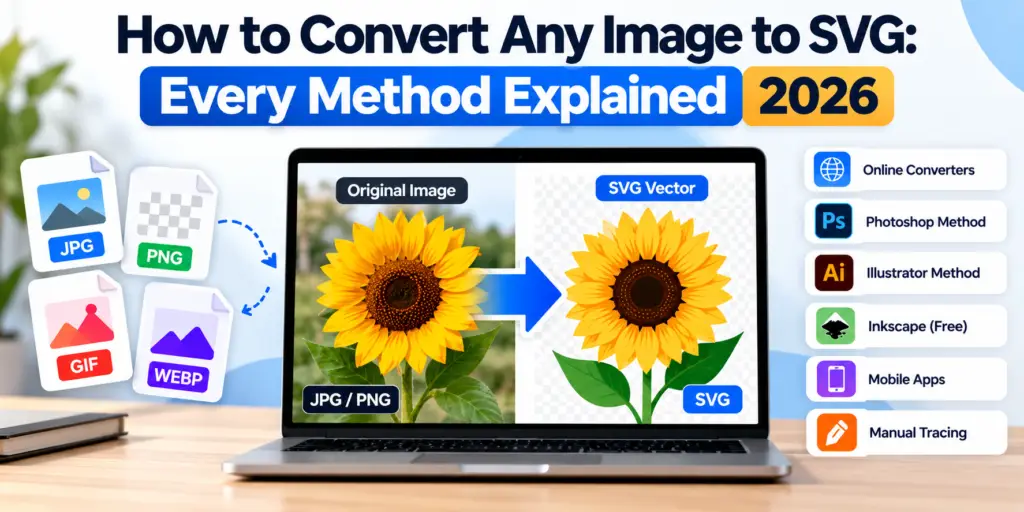
JPG or PNG file formats are widely employed when logos, icons, sketches, and photos are created. What’s more, images in these formats look perfect on the monitor but become blurry when enlarged and therefore cannot be used for cutting and printing processes. Converting them to SVG solves both problems.
Quick answer: To learn how to convert any image to SVG, choose the method that fits your image, such as free online converters for simple shapes, Adobe Illustrator’s Image Trace or Inkscape’s Trace Bitmap for more control, or manual vectorisation for logos, detailed artwork, and anything going to print. Only manual redrawing gives clean, accurate paths every time.
What Is an SVG File and Why Is It Useful?
SVG stands for Scalable Vector Graphics. SVG saves all forms and shapes as paths instead of pixels. Therefore, it has some amazing qualities:
- Infinitely scalable: A small business card is as sharp as a giant billboard.
- Lightweight: The size of an SVG file is much smaller than a high-resolution file.
- Editable: Any element (colour, shape, or text) can be changed in a matter of seconds.
- Widely compatible: SVG works in almost all browsers, design software programs, and laser cutting machines like Cricut and Silhouette.
Which Image Formats Can You Convert to SVG?
Any raster file can be converted to SVG, including:
- JPG / JPEG: Follow this guide to convert JPG to SVG.
- PNG files: including those with transparency. Follow this guide on how to convert PNG to SVG.
- Other file formats: GIF, BMP, TIFF, WEBP
- Hand drawings and scanned images
- Screenshots and files with low resolution
Do not forget to check PDF, AI, and EPS files for already existing vector paths before conversion.
How to Convert Any Image to SVG: Every Method Explained
Method 1: Using Free Online Image to SVG Converters
- Open a free online SVG converter in your browser.
- Upload any image in JPG, PNG, etc., format.
- Adjust settings such as the number of colours or level of detail, if available.
- Save the resultant SVG file.
Best for: Simple, high-contrast icons or quick previews. Limit: Results are often rough, and text and fine details may be distorted.
Method 2: Convert Images to SVG Using Adobe Illustrator
- Open or place the image in Illustrator and select it.
- Go to Window > Image Trace.
- Pick a preset: Black and White Logo, 6 Colours, or High Fidelity Photo.
- Modify Paths, Corners, and Noise parameters in the Advanced tab.
- Click Expand to turn the trace into editable paths.
- Go to File > Export > Export As to save it in SVG.
Best for: Designers who want more control. Limit: It is still automatic tracing, so results usually need cleanup.
Method 3: Use Inkscape to Convert an Image to SVG
- Inkscape is a vector graphic design program that is both free and open-source.
- Choose File > Import to get the picture.
- Click on the image and select Path > Trace Bitmap.
- One scan feature must be used for black and white art, while multiple scans will be needed for each colour.
- Hit Apply and delete the picture.
- The file must be saved in plain SVG format.
Best for: Free, hands-on tracing. Limit: Complex or blurry images produce messy paths.
Method 4: Convert an Image to SVG Using Manual Vectorisation
Manual vectorisation means that the designer recreates a bitmap image from scratch with the help of a pen tool using tools like Illustrator, CorelDRAW, or Inkscape.
Best for: Logos, badges, text, print, embroidery, and cutting files. Advantage: Clean, accurate, editable paths, even from blurry originals.
Method 5: Convert a Photo or Complex Image to SVG
Since photographs have millions of hues and bit parts, they cannot be converted to a vector illustration without any modifications. There are different techniques:
- Flat colour illustration: Turns the photograph into solid colours.
- Line art: Gets all outlines and important details.
- Silhouette: Uses only a solid shape, perfect for making stickers and other cut-outs.
Auto-tracing a photo with high detail settings creates huge, hard-to-edit files. A designer can recreate it in a clean, usable style instead.
Automatic Conversion vs Manual Vectorisation
| Factor | Automatic conversion | Manual vectorisation |
| Tools | Online converters, Image Trace, Trace Bitmap | Pen tool, by a skilled designer |
| Speed | Seconds to minutes | A few hours |
| Accuracy | Rough edges, rounded corners | Precise, true to the design |
| Text | Often distorted | Rebuilt with the right font |
| Blurry images | Traces the blur | Rebuilds missing detail |
| File quality | Many extra anchor points | Clean, light paths |
| Best for | Simple icons and previews | Logos, print, cutting, embroidery |
How to Convert an Image to SVG Without Losing Quality
- Start with the best original: Find the largest, clearest image you possess.
- Use the correct technique: Auto-tracing should be done only with simple shapes. For logos and highly intricate artwork, it is best to use manual vectorisation.
- Minimise the colours: A lesser number of colours results in fewer paths.
- Change the text: Use a real font to type the text instead of tracing the letters.
- Clean the paths: Eliminate any excessive anchor points, close the open lines, and resolve overlaps.
- Zoom in to check: Zoom in to 400% to see if there are any problems before exporting the artwork.
- Avoid embedded images: Make sure the SVG contains paths, not a hidden copy of the original pixels.
Common Problems When Converting Images to SVG
- Sharp or unsteady contours: The tool traced pixel steps instead of smooth curves.
- Shredded lettering: Letters lose their form and distance between them.
- An excess of colours: Gradients become dozens of stray colour patches.
- Bulky file sizes: Lots of little shapes cause a slowdown for software and machines.
- Missing details: Signs and small features are eliminated.
- Imitation SVG files: Some tools have simply included the original image right into an SVG file.
How to Check Whether Your SVG File Is a True Vector
- Zoom in: The actual vector image remains clear at 1000% or more. Otherwise, it is not a vector image.
- Use the outline view: In Illustrator, use Ctrl+Y for Windows (or Cmd+Y for Mac) to check the paths. The shapes should be clear, not a single image.
- Open the file in a text editor: A true SVG contains <path> or shapes elements. Seeing<image> tag with “base64” data means that pixels are just embedded.
- Try changing colours: Selecting and changing colours of elements is possible with vector files.
When Should You Use a Professional Image to Vector Conversion Service?
Seek professional assistance when:
- Working with brand logos or similar images
- The original image is blurry, low-resolution, or a screenshot
- You need files for printing, embroidery, engraving, signage, or cutting
- Dealing with complex graphic designs with a significant number of colours
- Require speedy service and precise results
Vector.Center provides 100% hand-drawn image to vector conversion and raster to vector conversion for businesses across the USA, with same-day delivery, free revisions, and SVG, AI, EPS, and PDF files included. See before-and-after examples in our samples gallery.
Frequently Asked Questions
How do I convert any image to SVG for free?
You can make use of a free online image converter service or use the tool Trace Bitmap by Inkscape. Either way, both tools are quite effective for basic as well as high-contrast images.
Can a photograph be converted into a true vector?
Yes, but not exactly as it is. A photo is usually recreated as a flat color illustration, line art or silhouette.
Is an online image to SVG converter accurate?
For basic shapes, yes, but for logos, texts, and complex art, the results are usually approximated and will require some additional fixing.
How can I make an SVG file editable?
Your SVG must have vector paths and not an image included in it. You will have to expand the vectorised artwork, split it into layers, and change the text.
Does converting an image to SVG improve its original quality?
Automatic transformation doesn’t provide details that were missing. Manual vectorisation does so because the designer redacts blurry edges and lost details manually.
When should I choose manual vectorisation instead of automatic conversion?
Using manual vectorisation is proper for logos, words, blurry images, and any files for printing, embroidery, engraving, or cutting.
Conclusion
Now you understand how to convert an image to SVG in all known techniques. Free web apps, Illustrator and Inkscape, are useful for basic graphics and quick trials. However, when it comes to logos and more complex pieces of art and production files, manual vectorisation guarantees high-quality SVGs. Would you like to avoid hassles in creating an ideal SVG? Get a free quote from Vector.Center for 100% hand-drawn vector conversion delivered the same day.