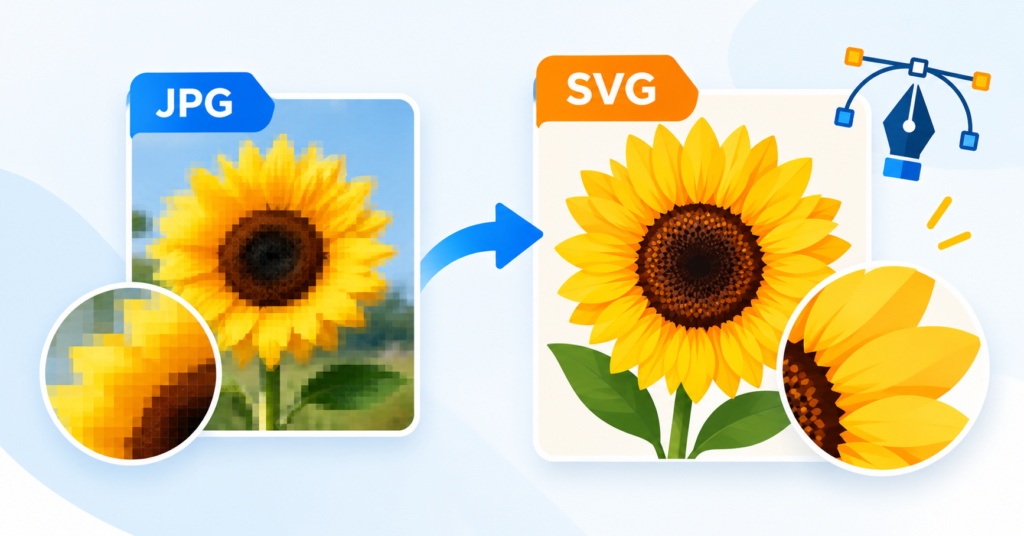
A JPG looks fine on screen, but enlarge it for a banner, T-shirt, or sign, and it quickly turns blurry. Converting a JPG to SVG resolves the blurriness issue, provided that the conversion is performed correctly.
Quick Answer: You can’t convert JPG to SVG without losing quality with a one-click tracing tool. The image will have to be recreated in vector paths. Manual vectorisation is the process of recreating every shape, curve, and colour manually. This keeps your SVG sharp at any size and clean enough for printing, cutting, and embroidery.
What Is the Difference Between JPG and SVG?
| Feature | JPG | SVG |
| Type | Raster (made of pixels) | Vector (made of paths and shapes) |
| Scaling | Gets blurry when enlarged | Stays sharp at any size |
| Editing | Hard to change shapes or colours | Shapes, colours and text are easy to edit |
| File size | Grows with resolution | Usually small and lightweight |
| Best for | Photos and web images | Logos, icons, illustrations, cutting and printing |
Can You Convert JPG to SVG Without Losing Quality?
Yes, only with the right method. A JPG has a fixed number of pixels. If you simply save it as an SVG or run it through a converter, the SVG will only copy or trace those pixels, and that copy will include any blur.
I think the best way to convert JPG to SVG without losing quality is to let a designer redraw the artwork with vector paths. When the designer does that, the edges, curves and details are rebuilt, not just copied from the pixels. The final SVG is often sharper than the JPG because the missing detail is recreated by hand.
How to Convert JPG to SVG Step by Step
- Choose a JPG image or the best original available. A larger, sharper image gives results, though even a blurry image can be redrawn manually.
- Decide if an automatic converter is enough or if manual vectorisation is needed. Simple, high contrast shapes may work with a tool. Logos, text and detailed artwork need work.
- Recreate the artwork as vector paths and shapes. Use software such as Adobe Illustrator, CorelDRAW or Inkscape to redraw each element with clean paths.
- Check outlines, colours, curves and small details. Match the colours, smooth the curves and rebuild thin lines and text.
- Open the SVG in compatible software and inspect it at different sizes. Zoom in to check that edges stay sharp, and make sure paths are closed and tidy.
- Export additional formats if required. Save AI, EPS and PDF versions for printing and production.
Want it done for you? Vector.Centre’s JPG to SVG conversion service redraws your image by hand and delivers a clean, scalable SVG, often the same day.
Online JPG to SVG Converter vs. Manual Vectorisation
| Factor | Online JPG to SVG converter | Manual vectorisation |
| Speed | Seconds | A few hours |
| Accuracy | Rough edges and wobbly curves | Clean, precise shapes |
| Blurry images | Copies the blur | Rebuilds missing detail |
| Text | Often distorted | Recreated with the right font |
| Colours | Extra or uneven shades | Exact, flat colours |
| File quality | Thousands of messy points | Light, editable paths |
| Best for | Quick previews, simple icons | Logos, print, cutting, embroidery |
What Types of Images Can Be Converted from JPG to SVG?
Almost any JPG image to SVG conversion is possible, including:
- Logos and brand marks
- Icons and badges
- Illustrations and cartoons
- Hand-drawn sketches
- Product artwork
- Stickers and decals
- Photos turned into flat colour or line art
For other output types, see our JPG to vector service.
Why Convert JPG to SVG for Printing and Design?
- Infinite scaling: The same file can be printed on a business card or a billboard.
- Print quality: Edges remain sharp and not blurry or pixelated.
- Easy editing: Colours, text, and shapes can be changed in seconds.
- Cutting machines clean closed paths that work with Cricut, Silhouette, laser engravers, and vinyl cutters.
- Files, for the web: SVG files load fast and look crisp on any screen.
- Embroidery and screen printing: Clean shapes simplify digitising and separations.
How to Choose the Right SVG Conversion Service
- 100% manual work: files need to be hand-drawn, not auto-traced.
- Real samples: Review before and after examples of similar artwork.
- Fast turnaround: Same-day/next-day delivery is expected.
- Free revisions: Add changes until you are satisfied.
- Multiple formats: SVG plus AI, EPS, and PDF should be included at no extra charge.
- Colour pricing: Request a quote before any work is performed with no hidden or rush fees.
- Production know how: The team needs to understand print, cut, and embroidery needs.
Common Mistakes to Avoid When Converting JPG to SVG
- Renaming the file: Changing “.jpg” to “.svg” does not create a vector file. It’s a name change. The image stays the same.
- Embedding the JPG inside an SVG: Some tools wrap the pixels in an SVG container so it still blurs when enlarged. The image remains rasterised no matter what the file extension says.
- Relying on auto-trace for logos: One click tracing distorts text and curves. It might not follow the shape exactly.
- Ignoring colour accuracy: Brand colours should be matched exactly, not guessed. A slight mismatch can ruin the look of a logo.
- Leaving overlapping paths: These can cause problems with cutting machines and printers. They can cut the lines or miss parts.
- Skipping the zoom test: Always check the SVG at sizes before using it. Zoom in to see how it holds up. You don’t want edges or broken shapes.
Frequently Asked Questions
How do I convert JPG to SVG without losing quality?
Redraw the JPG as vector paths with software such as Illustrator or Inkscape. Ask a professional to do manual vectorisation. One click converters usually lose detail.
Is JPG a vector file format?
No. JPG is a raster format that is made of squares called pixels. SVG, AI, EPS, and PDF are vector formats.
Can I convert a blurry JPG to SVG?
Yes. A designer can redraw a blurry or low‑resolution JPG by hand. Rebuild the missing details, creating a sharp SVG. It looks much better.
Is a free JPG to SVG converter good enough?
For simple shapes or quick previews, yes. For logos, printing, cutting, or embroidery, manual JPG to SVG conversion gives much cleaner results.
Can I edit an SVG file after conversion?
Yes. A clean SVG can be edited in Adobe Illustrator, CorelDRAW, Inkscape, Affinity Designer, Figma, or Canva. I find Inkscape very handy for edits.
Convert Your JPG to a Clean, Scalable SVG
You can convert JPG into SVG without any loss of quality as long as the picture is redrawn using real vector paths. Automatic programs are okay for checks, but hand-drawn vectorisation gives you a clear, easy-to-edit file that is useful for printing, websites, cutting machines and sewing machines.
Want a JPG to vector file quickly? Vector.Center provides 100% hand-drawn JPG to SVG conversion with same day shipping, free changes and SVG, AI, EPS and PDF files all included. Get a quote today.